· engineering · 9 min read
By Atharva GadekarTurn GitHub Actions Test Runs into Visible Email Reports
Build a Playwright and GitHub Actions workflow that emails a concise test summary after every run, including pass percentage, counts, duration, environment, and a link to the full report.
Automated tests are useful only when their results reach the people who can act on them.
A GitHub Actions workflow may execute perfectly every night, upload a detailed report, and mark the run red when tests fail. But that information still stays inside the Actions tab. Someone has to remember to open the repository, find the latest run, and interpret the logs.
That is a visibility problem.
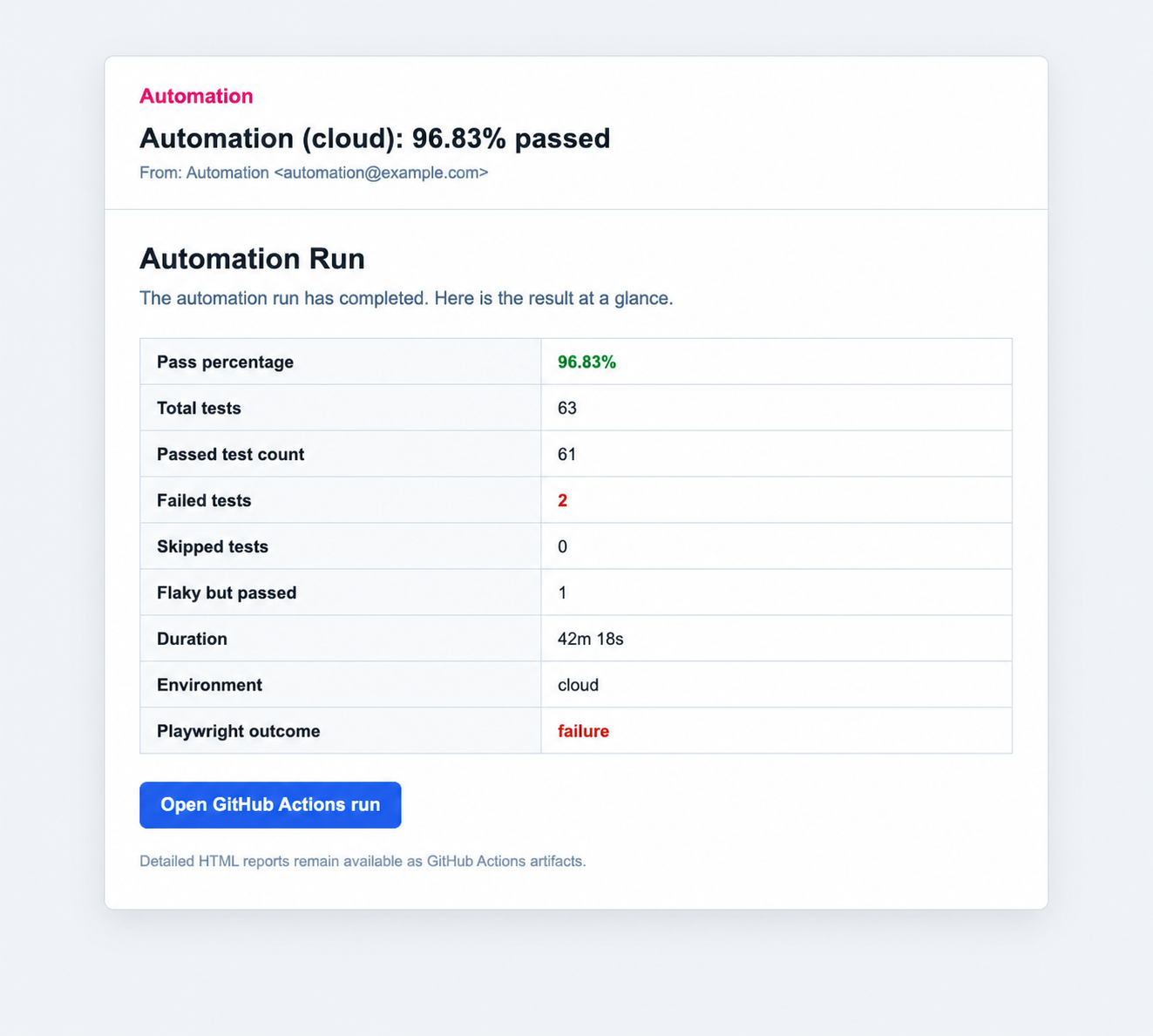
We solved it by adding a small email-reporting layer to our Playwright workflow. After every automation run, the team receives a concise email containing the pass percentage, total tests, passed and failed counts, duration, environment, and a direct link to the GitHub Actions run.
The result is not another reporting dashboard. It is a short operational signal delivered to a place the team already monitors.
This tutorial explains how to build the same setup using Playwright, GitHub Actions, Node.js, Nodemailer, and any SMTP provider. We used Brevo, but the design is provider-independent.
What we wanted from the email
The email needed to answer the first questions a developer or QA engineer asks after a test run:
- Did the suite pass?
- What percentage of tests passed?
- How many tests ran?
- How many passed, failed, skipped, or passed after a retry?
- Which environment was tested?
- How long did the run take?
- Where can I inspect the complete report?
It should not copy the entire test log into an inbox. The email is the summary; GitHub Actions and the Playwright HTML report remain the investigation tools.
The reporting flow
The implementation has four parts:
GitHub Actions
    -> Playwright test suite
    -> JSON and HTML reports
    -> Node.js summary script
    -> SMTP email
    -> GitHub run link for deeper investigation
The JSON report is the important bridge. It converts the test run into structured data, so the email script does not have to scrape terminal output.
Step 1: Generate a machine-readable Playwright report
Playwright supports multiple reporters at the same time. We keep the list reporter for CI logs, the HTML reporter for detailed investigation, and add the JSON reporter for automation.
In playwright.config.js:
const { defineConfig } = require('@playwright/test');

module.exports = defineConfig({
  reporter: process.env.CI
    ? [
        ['list'],
        ['html'],
        [
          'json',
          {
            outputFile:
              process.env.PLAYWRIGHT_JSON_REPORT ||
              'test-results/playwright-results.json',
          },
        ],
      ]
    : 'html',
});
The JSON reporter provides structured run statistics such as:
{
  "stats": {
    "expected": 61,
    "skipped": 0,
    "unexpected": 2,
    "flaky": 1,
    "duration": 2538000,
    "startTime": "2026-06-18T03:30:00.000Z"
  }
}
Playwright uses these outcome names:
expected: tests that produced their expected resultunexpected: tests that failed unexpectedlyflaky: tests that failed initially but passed after a retryskipped: tests that were not executed
For our summary, a flaky test is counted as passed because its final outcome succeeded. We still display the flaky count separately so reliability issues remain visible.
Step 2: Build the email script
Install Nodemailer in the automation project:
npm install nodemailerCreate scripts/send-test-report-email.js:
const fs = require('fs');
const path = require('path');
const nodemailer = require('nodemailer');

const reportPath = path.resolve(
  process.env.PLAYWRIGHT_JSON_REPORT ||
    'test-results/playwright-results.json'
);

function requireEnv(name) {
  const value = process.env[name];
  if (!value) throw new Error(`${name} is required`);
  return value;
}

function readStats() {
  if (!fs.existsSync(reportPath)) {
    return {
      expected: 0,
      flaky: 0,
      unexpected: 0,
      skipped: 0,
      duration: 0,
      missingReport: true,
    };
  }

  const report = JSON.parse(fs.readFileSync(reportPath, 'utf8'));

  return {
    expected: report.stats?.expected || 0,
    flaky: report.stats?.flaky || 0,
    unexpected: report.stats?.unexpected || 0,
    skipped: report.stats?.skipped || 0,
    duration: report.stats?.duration || 0,
    missingReport: false,
  };
}

function formatDuration(milliseconds) {
  const seconds = Math.round(milliseconds / 1000);
  return `${Math.floor(seconds / 60)}m ${seconds % 60}s`;
}

function getRunUrl() {
  const { GITHUB_SERVER_URL, GITHUB_REPOSITORY, GITHUB_RUN_ID } = process.env;
  if (!GITHUB_SERVER_URL || !GITHUB_REPOSITORY || !GITHUB_RUN_ID) {
    return null;
  }

  return `${GITHUB_SERVER_URL}/${GITHUB_REPOSITORY}/actions/runs/${GITHUB_RUN_ID}`;
}

async function main() {
  const stats = readStats();
  const passed = stats.expected + stats.flaky;
  const total = passed + stats.unexpected + stats.skipped;
  const percentage = total
    ? ((passed / total) * 100).toFixed(2)
    : '0.00';
  const runUrl = getRunUrl();
  const smtpPort = Number(requireEnv('SMTP_PORT'));

  const transporter = nodemailer.createTransport({
    host: requireEnv('SMTP_HOST'),
    port: smtpPort,
    secure: smtpPort === 465,
    auth: {
      user: requireEnv('SMTP_AUTH_USER'),
      pass: requireEnv('SMTP_AUTH_PASSWORD'),
    },
  });

  const rows = [
    ['Pass percentage', `${percentage}%`],
    ['Total tests', total],
    ['Passed test count', passed],
    ['Failed tests', stats.unexpected],
    ['Skipped tests', stats.skipped],
    ['Flaky but passed', stats.flaky],
    ['Duration', formatDuration(stats.duration)],
    ['Environment', process.env.TARGET_ENV_PROJECT || 'cloud'],
    ['Playwright outcome', process.env.PLAYWRIGHT_OUTCOME || 'unknown'],
  ];

  const warning = stats.missingReport
    ? '<p><strong>Warning:</strong> The JSON report was not generated. Check the workflow for an infrastructure or setup failure.</p>'
    : '';

  await transporter.sendMail({
    from:
      process.env.AUTOMATION_REPORT_FROM ||
      'Automation Reports <support@example.com>',
    to: requireEnv('AUTOMATION_REPORT_RECIPIENTS'),
    subject: `Automation (${process.env.TARGET_ENV_PROJECT || 'cloud'}): ${percentage}% passed`,
    html: `
      <div style="font-family: Arial, sans-serif; max-width: 640px;">
        <h2>Automation Run</h2>
        <p>The test run has completed.</p>
        <table cellpadding="8" cellspacing="0" style="border-collapse: collapse; width: 100%;">
          ${rows.map(([label, value]) => `
            <tr>
              <td style="border: 1px solid #d9e2ec; font-weight: 600;">${label}</td>
              <td style="border: 1px solid #d9e2ec;">${value}</td>
            </tr>
          `).join('')}
        </table>
        ${runUrl ? `<p><a href="${runUrl}">Open GitHub Actions run</a></p>` : ''}
        ${warning}
      </div>
    `,
  });
}

main().catch((error) => {
  console.error('Failed to send automation report email:', error);
  process.exit(1);
});
There are three visibility decisions hidden in this small script:
- The pass percentage is in the subject, so the result is visible before opening the email.
- The body contains only decision-making information, not raw logs.
- The GitHub run URL preserves the path from notification to investigation.
The missing-report warning is also important. A test failure normally produces a JSON report, but dependency installation or browser setup can fail before Playwright starts. Reporting zero tests without explaining why would create false confidence.
Step 3: Store SMTP credentials as GitHub secrets
Never commit SMTP credentials to the repository or an .env file tracked by Git.
In GitHub, open Settings > Secrets and variables > Actions, then create these repository secrets:
SMTP_HOST
SMTP_PORT
SMTP_AUTH_USER
SMTP_AUTH_PASSWORD
AUTOMATION_REPORT_RECIPIENTS
AUTOMATION_REPORT_FROM
Use a comma-separated value for multiple recipients:
developer@example.com,qa@example.com,engineering-manager@example.comThe provider name in the variable is not architecturally important. You can rename these to SMTP_HOST, SMTP_PORT, and similar names if the script must support different SMTP providers.
Step 4: Connect the script to GitHub Actions
The reporting steps must execute even when Playwright fails. Otherwise, the team receives emails only for successful runs, which is exactly when the notification is least urgent.
Here is a complete sample workflow:
name: Playwright Tests

on:
  schedule:
    # Friday at 9:00 AM Asia/Kolkata. GitHub cron uses UTC.
    - cron: '30 3 * * 5'
  workflow_dispatch:

jobs:
  test:
    runs-on: ubuntu-latest
    timeout-minutes: 60
    env:
      TARGET_ENV_PROJECT: cloud
      PLAYWRIGHT_JSON_REPORT: test-results/playwright-results.json

    steps:
      - uses: actions/checkout@v5

      - uses: actions/setup-node@v5
        with:
          node-version: 22

      - name: Install dependencies
        run: npm ci

      - name: Install Playwright browsers
        run: npx playwright install --with-deps

      - name: Run Playwright suite
        id: playwright
        continue-on-error: true
        run: npx playwright test --project="${TARGET_ENV_PROJECT}"

      - name: Email test results
        if: always()
        env:
          AUTOMATION_REPORT_RECIPIENTS: ${{ secrets.AUTOMATION_REPORT_RECIPIENTS }}
          AUTOMATION_REPORT_FROM: ${{ secrets.AUTOMATION_REPORT_FROM }}
          SMTP_HOST: ${{ secrets.SMTP_HOST }}
          SMTP_PORT: ${{ secrets.SMTP_PORT }}
          SMTP_AUTH_USER: ${{ secrets.SMTP_AUTH_USER }}
          SMTP_AUTH_PASSWORD: ${{ secrets.SMTP_AUTH_PASSWORD }}
          PLAYWRIGHT_OUTCOME: ${{ steps.playwright.outcome }}
        run: node scripts/send-test-report-email.js

      - name: Upload Playwright HTML report
        if: always()
        uses: actions/upload-artifact@v6
        with:
          name: playwright-report
          path: playwright-report/
          retention-days: 7

      - name: Preserve Playwright failure status
        if: ${{ steps.playwright.outcome == 'failure' }}
        run: exit 1
Why use continue-on-error and then fail at the end?
Without continue-on-error, a failed Playwright command stops normal workflow execution. The if: always() steps can still run, but this explicit pattern makes the control flow easy to understand:
Run tests -> Send email -> Upload report -> Restore the correct CI statusThe final exit 1 matters. Without it, continue-on-error: true could leave a failed test run looking successful in GitHub. Visibility should never come at the cost of accurate CI status.
An equally valid alternative is to remove continue-on-error and the final failure step while keeping if: always() on the email and artifact steps. Choose one pattern and keep it consistent.
Optional: include failed test names
The JSON report also contains suite, specification, project, and result details. You can walk the nested suites collection and collect tests whose final status is unexpected.
Limit the list to the first 10 or 25 failures. An uncapped list can turn one bad run into an unreadable email.
function collectFailedTests(suites, limit = 25) {
  const failures = [];

  function visit(suite, parents = []) {
    const path = suite.title ? [...parents, suite.title] : parents;

    for (const spec of suite.specs || []) {
      for (const test of spec.tests || []) {
        if (test.status === 'unexpected') {
          failures.push({
            title: [...path, spec.title].join(' > '),
            project: test.projectName,
            location: spec.file ? `${spec.file}:${spec.line}` : null,
          });
        }

        if (failures.length >= limit) return;
      }
    }

    for (const child of suite.suites || []) {
      visit(child, path);
      if (failures.length >= limit) return;
    }
  }

  for (const suite of suites || []) {
    visit(suite);
    if (failures.length >= limit) break;
  }

  return failures;
}
This gives the reader immediate context while the full HTML report remains the source of truth for traces, screenshots, retries, and error stacks.
What improved after adding email visibility
The technical implementation is small, but the operational change is significant.
Failures are harder to miss
The result no longer depends on someone checking the Actions tab. A failed run arrives with its pass rate, environment, and investigation link.
Successful runs create confidence
A short success email confirms that the scheduled suite executed. Silence is no longer interpreted as success.
The team shares one summary
Developers, QA engineers, and engineering leads see the same numbers. There is less time spent asking whether the run happened or which result is current.
Investigation starts with context
The email answers the high-level questions first. When someone opens GitHub Actions, they already know whether they are investigating one failure or a broad regression.
Practical lessons
- Put the pass percentage in the subject line.
- Include a direct link to the exact GitHub Actions run.
- Send the email after both successful and failed test runs.
- Keep the detailed HTML report as an artifact instead of attaching it to every email.
- Show flaky tests separately, even if they eventually pass.
- Warn when the JSON report is missing.
- Keep SMTP credentials in GitHub secrets.
- Cap failed-test names to keep the message scannable.
- Preserve the correct red or green workflow status after sending the email.
Final thought
Test automation creates results. Reporting creates visibility.
The difference is important: a suite running on schedule does not automatically mean the team knows what happened. By converting Playwright’s JSON report into a short email with a clear outcome and a path to deeper evidence, we made the automation useful beyond the CI system itself.
The same pattern works for API tests, unit tests, load tests, security scans, and deployment checks. If a machine produces an important result, deliver the summary where the responsible humans will actually see it.